

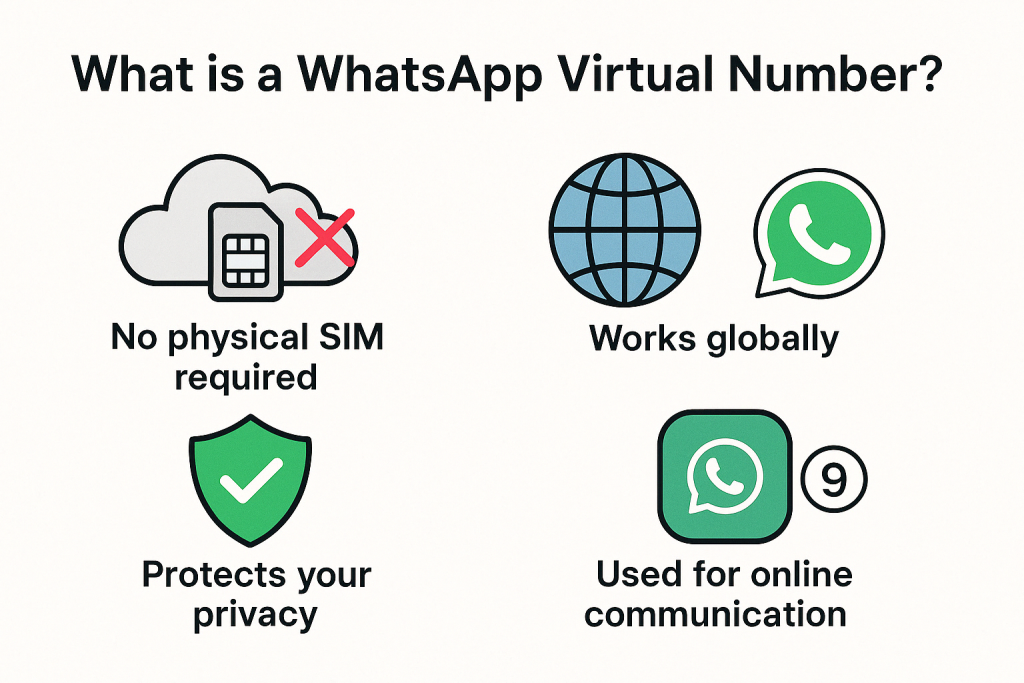
What Do You Mean by a Virtual Number for WhatsApp Business?
A virtual phone number is simply a number that isn’t tied to a physical phone line. Instead, it exists in the cloud and can route calls and messages to your existing devices.
When you use a virtual number for WhatsApp Business, you can separate your personal and business communications while managing everything from one device.
Think of it like having a second phone number without needing a second phone. You can use this number exclusively for your business contacts, keeping your personal number private.
Steps to Setting Up WhatsApp Business with a Virtual Number
1. Choose a Virtual Number Provider
The first step is finding a reliable service provider for your virtual number. There are many options out there, including:
- AutoChat
- Google Voice
- Hushed
- Burner
- TextNow
- Twilio
- Line2
- Grasshopper
Features to Consider
- Coverage area: Make sure the service works in your country and the countries where your customers are.
- Cost: Compare monthly fees and any extra charges for calls or texts.
- Number options: Some providers let you choose your area code or even pick a specific number.
- Reliability: Check reviews to make sure the service doesn’t drop calls or messages.
- Additional features: Some services offer voicemail transcription, call recording, or auto-replies.
- Customer support: Good technical support matters when you’re using the number for business.
2. Set Up Account with Provider
- Visit their website or download their app
- Create an account with your email
- Choose your preferred phone number
- Complete the payment process
- Verify your account (usually through email or SMS)
- Download the provider’s app if needed
After setting up, you’ll receive confirmation that your virtual number is active and ready to use.
3. Set Up a WhatsApp Business Account
- Download the WhatsApp Business app from the Google Play Store or Apple App Store
- Open the app and accept the terms and conditions
- Enter your new virtual phone number when prompted
- Verify the number using the code sent via SMS or voice call
- Set up your profile by adding your business name, logo, and category
- Import your contacts if needed
If you’re switching from a regular WhatsApp account, back up your chats first if you want to transfer them.
4. Optimise Your Business Profile
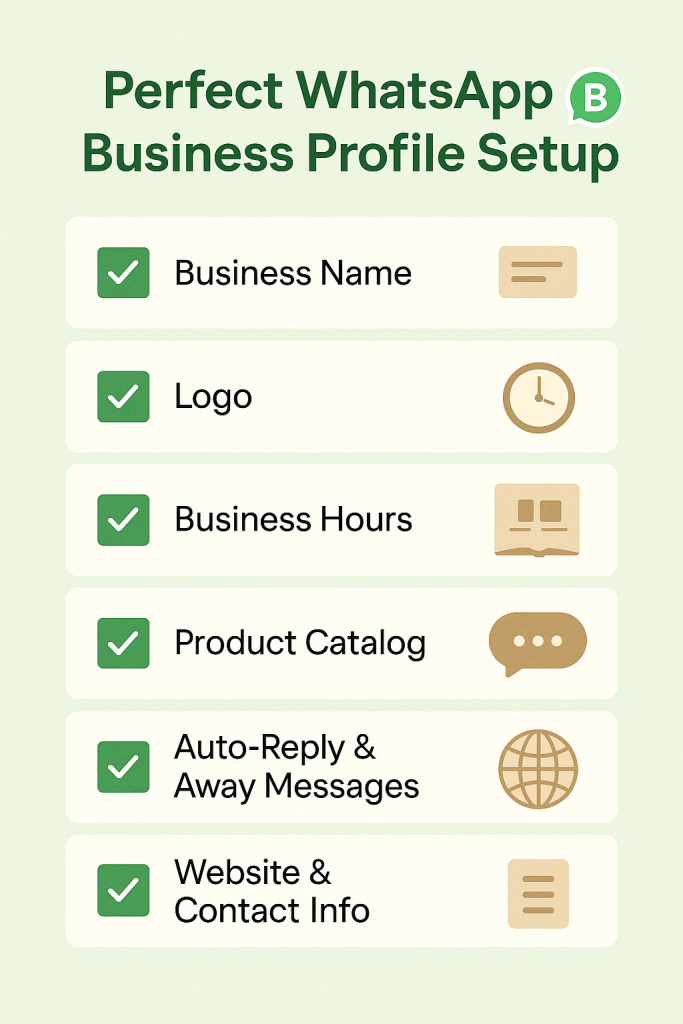
Don’t skip this step! A complete business profile helps customers trust your business:
- Add your business name, address, description, email, and website
- Upload a clear profile picture (your logo works best)
- Set up business hours so customers know when to expect a response
- Create a catalog of your products or services
- Set up greeting messages and away messages
- Add labels to organise your customers (new customers, regular customers, etc.)
A well-optimized profile makes your business look professional and helps customers find the information they need quickly.
What Can You Do With Your Virtual WhatsApp Number?
Once your WhatsApp Business account is set up with a virtual number, you can:
- Send and receive messages from customers
- Share product information and catalogs
- Process orders directly through chat
- Provide customer support
- Send payment links
- Create automated responses for common questions
- Share your business location
- Broadcast messages to multiple customers at once
- Set up quick replies for frequent responses
- Track message statistics to improve your customer service
The app gives you all the tools you need to manage customer relationships efficiently.
Benefits of Using a Virtual Number for WhatsApp
Using a virtual number for your WhatsApp Business brings several advantages:
- Privacy protection: Keep your personal number private while still being accessible to customers.
- Work-life balance: You can turn off business notifications after working hours without affecting personal communications.
- Professional image: Having a dedicated business number looks more professional than using your personal number.
- Multiple device access: Many virtual number services allow you to receive calls and messages on multiple devices.
- Cost-effective: It’s usually cheaper than getting a second physical SIM card or phone.
- Easy to remember: You can often choose a number that’s easy for customers to remember.
- Scalability: As your business grows, you can add more virtual numbers for different departments or services.
- Location flexibility: You can choose a local number even if you’re not physically in that area, which helps build trust with local customers.
- Call management: Features like call forwarding, voicemail, and call screening help you manage communications efficiently.
- Analytics: Many providers offer insights into your call patterns and customer interactions.
Things to Note While Using a Virtual Number for WhatsApp Business
WhatsApp Policy
- WhatsApp actively discourages the use of automatically generated virtual numbers or numbers from free services.
- They may ban accounts that use certain types of virtual numbers.
- WhatsApp may detect and block virtual numbers they suspect are being used for spam.
- Your account must comply with WhatsApp’s Business Policy and Terms of Service.
To stay safe, use a reputable virtual number provider that’s known to work well with WhatsApp.
Verification Process
- Some virtual number services don’t support SMS verification.
- You might need to use the “Call Me” option instead of SMS verification.
- Verification might fail if WhatsApp detects the number as a virtual number.
- You may need to try different providers if verification fails.
- Once verified, avoid changing devices frequently as it might trigger re-verification.
If you have trouble with verification, contact your virtual number provider for help.
Legal Considerations
- Make sure your virtual number complies with local telecommunications laws.
- Some countries require the registration of all phone numbers, including virtual ones.
- Check if there are restrictions on commercial use of virtual numbers in your area.
- Be transparent with customers about your business location if using a virtual number from another region.
- Comply with all data protection laws when handling customer data.
When in doubt, consult with a legal expert familiar with telecommunications regulations in your area.
Getting a WhatsApp Virtual Number with AutoChat
AutoChat is one popular option for getting a virtual number specifically for WhatsApp Business. Here’s how to use it:
- Visit the AutoChat website or download their app
- Create an account and choose a subscription plan
- Select a virtual phone number from their available options
- Complete the payment process
- Follow their specific instructions to set up the number with WhatsApp Business
- Use their additional features like automation and CRM integration
AutoChat offers extra features designed specifically for WhatsApp Business users, such as:
- Automated responses and chatbots
- Customer data management
- Team inbox for multiple agents
- Message templates
- Integration with other business tools
- Analytics and reporting
These features can help you provide better customer service and manage your WhatsApp Business communications more efficiently.
Conclusion
A virtual number for WhatsApp Business helps you maintain professionalism while keeping your personal and business lives separate. The setup process is straightforward: choose a provider, get your number, verify it with WhatsApp Business, and optimize your profile.
With the right virtual number setup, you can improve your customer communications, protect your privacy, and build a more professional business presence on WhatsApp.
Just make sure to follow WhatsApp’s policies and any relevant legal requirements to avoid problems down the road. AutoChat can help you with any roadblocks.
Whether you’re just starting or looking to improve your existing business communications, a virtual number for WhatsApp Business is a smart investment that can help your business grow.
“The adoption of a WhatsApp virtual number is not just a trend but a necessity today. With the steps in this blog, you can start your journey and establish a professional presence on WhatsApp Business. Sign up Now: https://panel.autochat.in/signup“